How to Set Up a Traccar Test Server in Docker for GPS Tracker Testing
Run Traccar in Docker, open the right ports and feed it data from virtual Teltonika, GT06, H02 and GPS103 trackers - no hardware needed.
Traccar is the quickest way to find out whether a GPS tracker integration works. It's open source, it decodes hundreds of tracker protocols, and it runs in a single Docker container. Here's how to set one up and feed it data without a physical tracker.
Where to Run It
Telemify's virtual devices connect from the cloud, not from your laptop, so Traccar has to be reachable from the internet:
- A small VPS - any cloud VM with Docker, with the tracker ports open in its firewall. The most reliable option.
- Your own machine - exposed through a TCP tunnel such as ngrok.
For a quick check you can skip hosting altogether: Traccar runs public demo servers (demo.traccar.org to demo4.traccar.org) that accept devices on the same ports. Don't use them for anything private - uptime and history aren't guaranteed.
Start Traccar
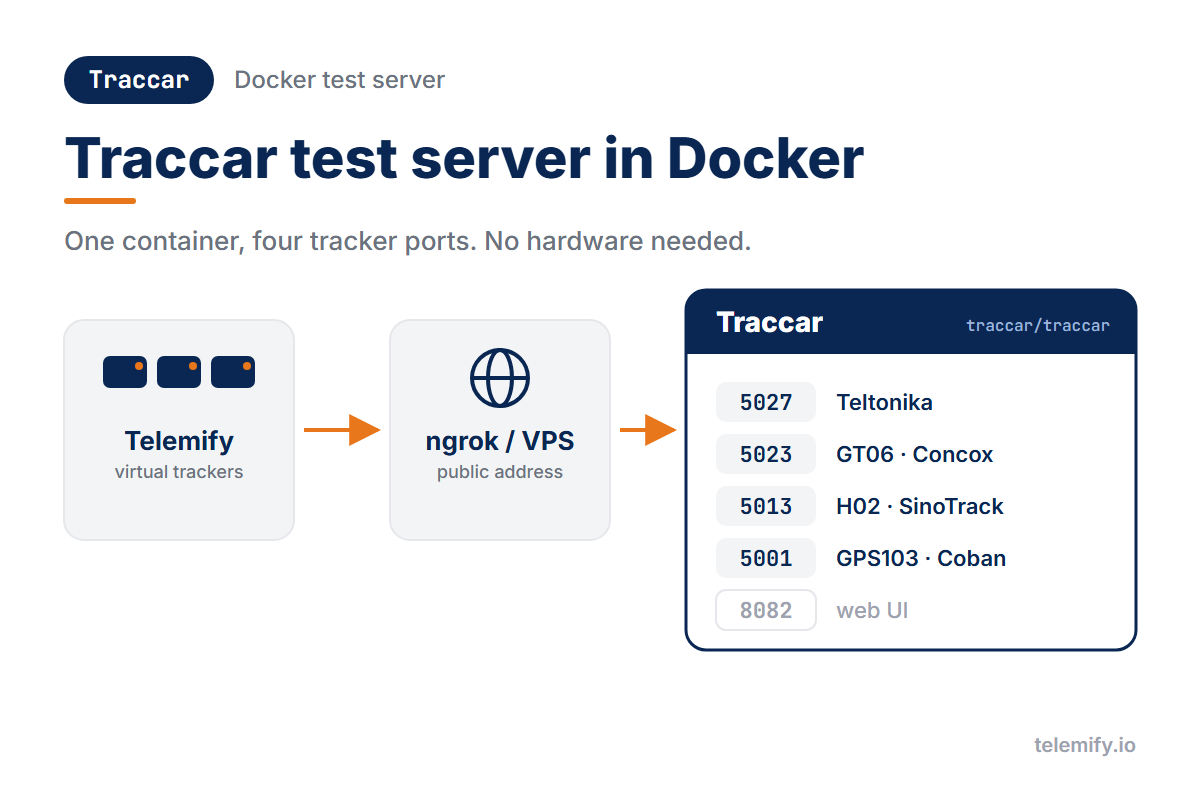
One command starts the web UI and the four tracker ports used below:
docker run -d --name traccar -p 8082:8082 -p 5001:5001 -p 5013:5013 -p 5023:5023 -p 5027:5027 traccar/traccar:latest
The ports, by protocol:
- Teltonika (FMB, FMC, FMT families) - port 5027
- GT06 (Concox, Jimi IoT) - port 5023
- H02 (SinoTrack, CanTrack) - port 5013
- GPS103 (Coban TK103 family) - port 5001
Open http://<your-server>:8082 and register straight away: the first account becomes the administrator.
Add the Device
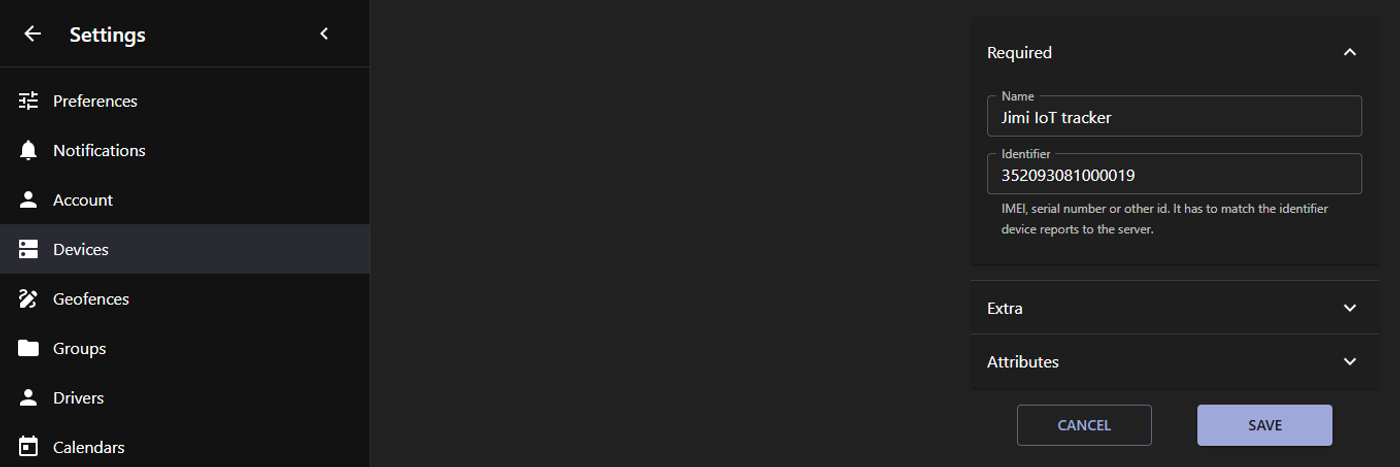
Traccar only stores data from devices it knows. Add a device and set its Identifier to the exact IMEI the tracker sends - or the 10-digit ID, for H02 trackers that use one. Data from unknown identifiers is dropped; the only trace is an "Unknown device" line in the Traccar log.
Point a Virtual Device at It
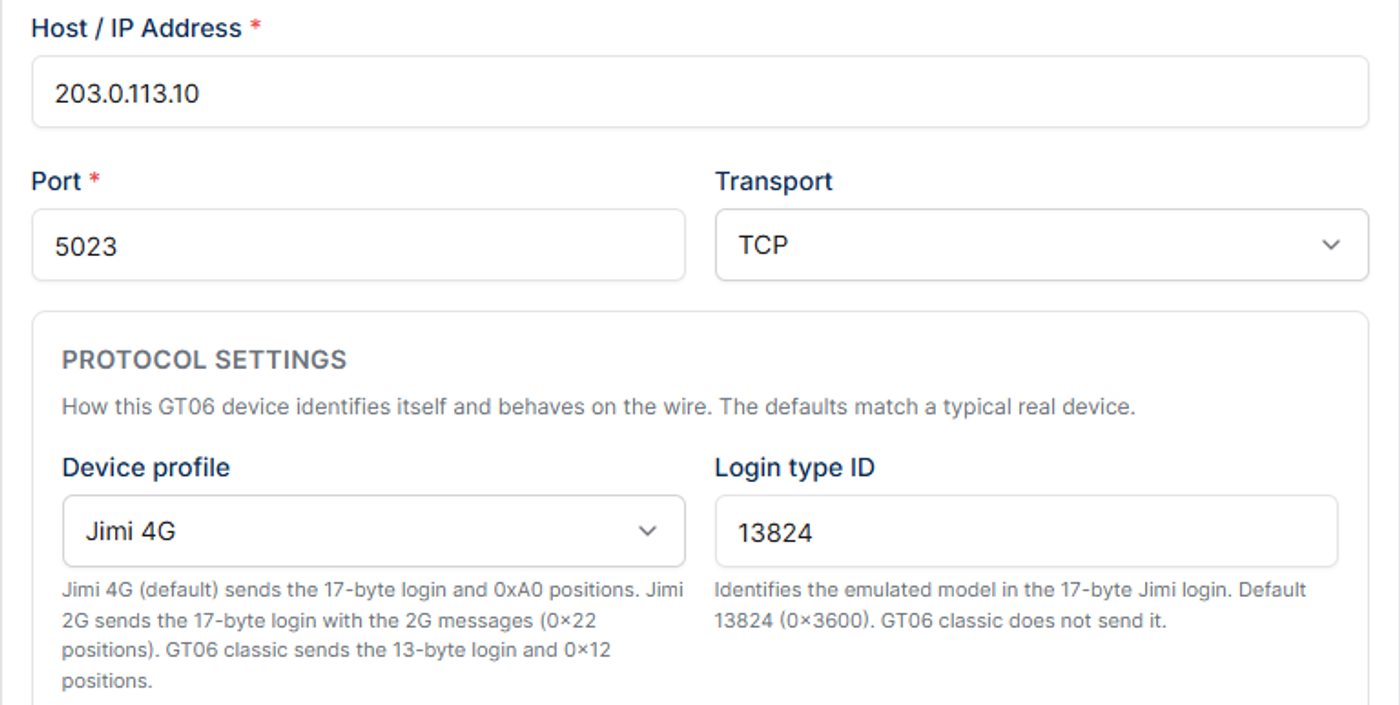
In Telemify, create a device with the same IMEI and pick its protocol. In the Target Server tab, enter your server's address as the host and the protocol's port - the port field suggests the usual Traccar port. Assign a route and start the device.
Check the Data
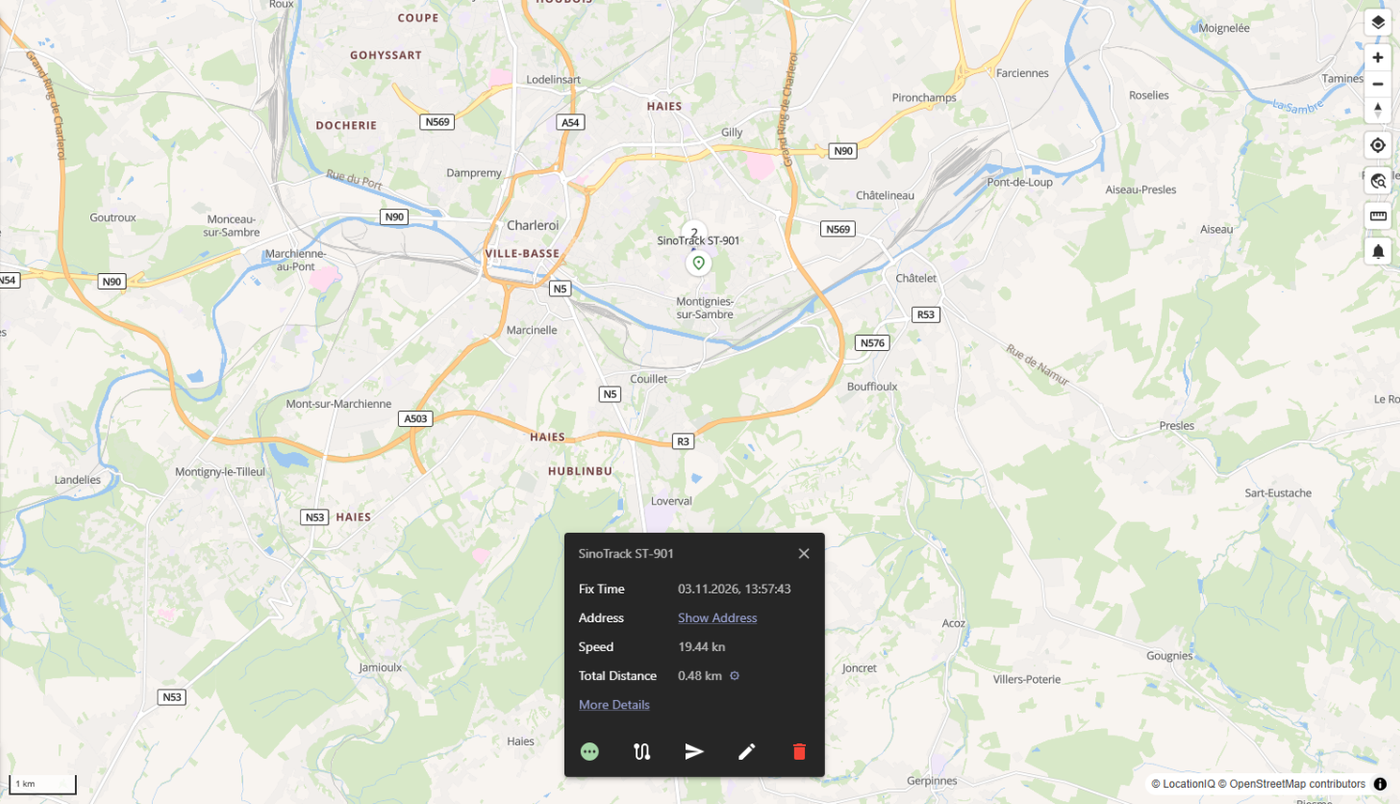
- Traccar map - the device appears and moves along its route. Open its details to see the decoded attributes.
- Traccar log - raw traffic, live:
docker exec traccar tail -f /opt/traccar/logs/tracker-server.log - Emulator Debugging Tool - in Telemify, every message the device sent and the server's answers to its login and heartbeats.
If the device stays offline, check in this order: the port is open, the identifier matches exactly, and the protocol matches the port.
Next Steps
Protocol-specific guides: Teltonika, SinoTrack ST-901, Coban TK103 and Concox / Jimi IoT.